

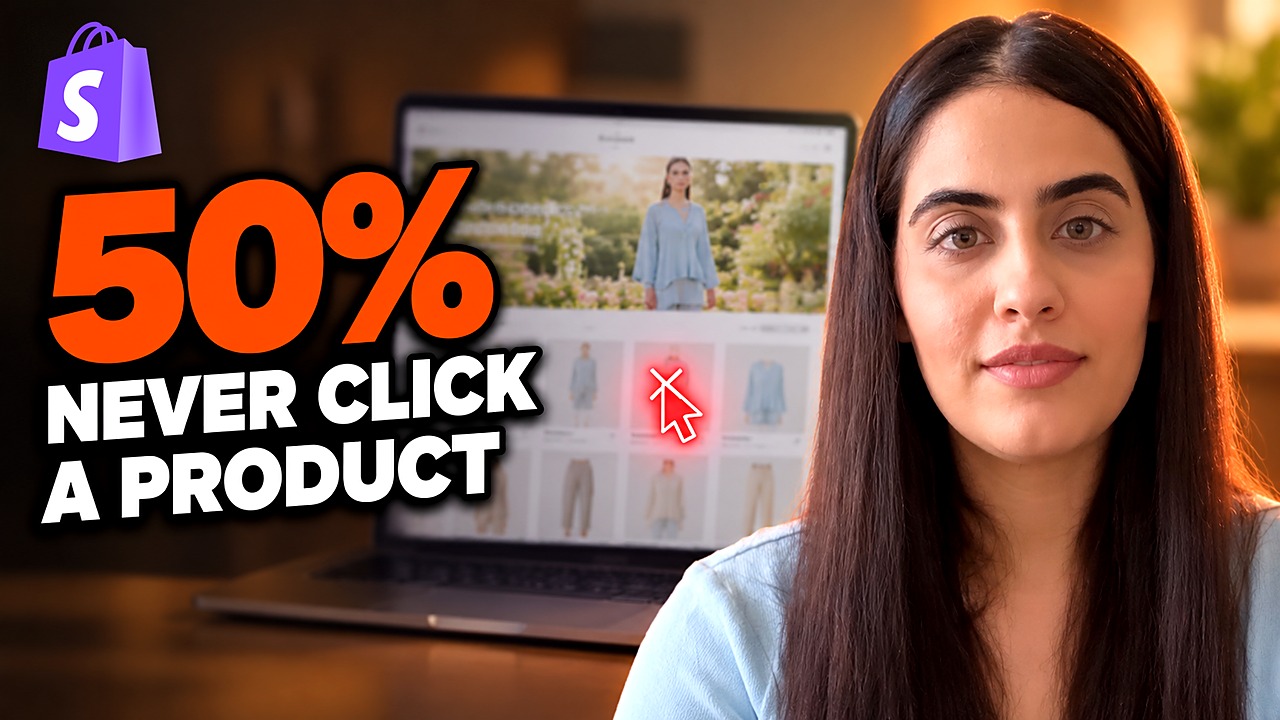
At a Glance: Why Shoppers Leave a Shopify Fashion Homepage
- The problem: About 50% of ecommerce sessions reach a product page (OptiMonk, 2026 Industry Conversion Rate Benchmarks), so roughly half never open one. A visitor who never opens a product page cannot buy.
- The cause: Before a new visitor clicks anything, she needs three answers in order: what does this store sell and is it for me, where do I go, and what do you have for me specifically. Most homepages answer the second question before the first.
- The fix: Answer question 1 with the hero photo, a styled product grid or short video. Answer question 2 with one “shop by” section (occasion, body type or style) built from Shopify’s own collections. Question 3 needs a different answer for every shopper, which is the job of an AI stylist such as iWAND.
Shoppers leave a Shopify fashion homepage without opening a product when the page doesn’t answer three questions fast enough: what does this store sell and is it for me, where do I go, and what do you have for me specifically. OptiMonk’s 2026 benchmarks put the average at about 50% of sessions reaching a product page; the rest never see one.
Part of The Agentic Fashion Funnel, our guide to the six stages where a Shopify fashion store loses shoppers. This post covers the very first step: the homepage. It is the written version of a video by iWAND co-founder Toktam Kowsari, who walks through each question on real stores. No monthly app is needed for the first two questions: the fixes cost some effort and content, not a subscription.
Key moments in the video
- 00:00 Half your visitors never open a product page
- 01:10 The 3 questions, and how to check your numbers
- 02:34 Question 1: What do you sell?
- 05:29 Question 2: Where do I go?
- 08:26 Question 3: What do you have for me?
- 13:39 Your 10-minute fix
Table of Contents
Half Your Visitors Never Open a Product Page: What the Benchmark Says
About half of the sessions on an online store never reach a product page. OptiMonk’s 2026 Industry Conversion Rate Benchmarks list conversion to a product page at 50% of sessions, and note that a lower figure usually points to a problem with the store’s navigation or homepage layout.
Picture that in a physical boutique. Half of the people who walk in look around for a few seconds and walk back out. They don’t touch a single piece of clothing. That is what happens on many Shopify fashion stores, and it happens before any of the work that usually gets attention: product photos, size charts, checkout.
It matters because a product page view comes before every sale. The same OptiMonk report puts apparel and accessories stores at a 1.35% to 3.01% conversion rate. Every visitor who leaves from the homepage is one who never had the chance to be part of that small share.
The 50% is an average across all sessions and all entry pages. Your own figure for new visitors who land on your homepage will be different, and it is the only one worth tracking. The next section shows how to measure it for free.
The 3 Questions Every New Visitor Asks, and How to Check Your Numbers
Every new visitor to a fashion store asks three questions, always in the same order, before she clicks on anything. A homepage that answers them in order keeps her; a homepage that skips one loses her.
- What does this store sell, and is it for me? She answers this from the storefront itself: the first screens, the photos, the mood.
- Where do I go to find something for me? This question only comes up once the first one is answered.
- What do you have for me, specifically? The most personal question, and the one where the answer changes for every shopper.
The most common mistake is answering question 2 before question 1. The homepage is full of menus and collections, but the visitor still has no idea what kind of store this is, so she has no reason to open any of them.
How to measure your own homepage drop-off with two free tools
Google Analytics 4, funnel exploration. In Explore, create a funnel exploration with two steps: a page view of the homepage, then a product page view. Limit it to new visitors, for example with the New / established dimension. The drop between the two steps is your own version of the 50% benchmark.
Microsoft Clarity, scroll and click maps. Microsoft Clarity is free and installs on Shopify. Its scroll map and click map tell you which of the three questions is going unanswered.
| What you see | Where you see it | Unanswered question |
|---|---|---|
| New visitors don’t scroll past the second screen | Clarity scroll map | Question 1: what do you sell? |
| They scroll, but clicks stay on the menu and never reach a product | Clarity click map | Question 2: where do I go? |
| They open products, then leave without adding anything to the cart | GA4 funnel: product page to add to cart | Question 3: what do you have for me? |
Question 1: What Do You Sell? Make the First Two Screens Answer It
The first two screens of a fashion homepage have to tell a new visitor what the store sells and who it is for. Not only the top banner, and not category names like “Tops” and “Pants”: the feeling and the style of the brand.
Free-shipping bars and discount codes are not wrong, but they speak to someone who already knows the brand. A new visitor needs something else first. There are three ways to give it to her, from the easiest to the most work.
Fix 1: Let the hero photo say what you sell
If the hero text doesn’t answer question 1, the hero photo can. Test it in five seconds: cover the text on your hero with your hand. If a stranger can still tell what you sell, the hero works.
In the video, one store’s hero headline just says “New arrival”, which tells a new visitor nothing: new compared to what? But the photo does the whole job. Earthy colours, soft fabric, a relaxed fit. With the text covered, it is still obvious what kind of store this is. This is the easiest fix, and it can take minutes if you already have a good photo. The catch: it only works when the photo shows the style you actually sell. A generic lifestyle image still says nothing.
Fix 2: Shoot your product grid as one story
Almost every store already has a product grid on the homepage. The question is what is inside the photos. Marine Layer places an ordinary product grid right under the hero: one product per tile, with a name, a price and colour swatches. Nothing unusual about the layout.
The photos are what work. No product sits on a white background. Every piece is worn by a real person, in a full outfit, in a real place, and the row reads as one set: same season, same colours, same mood. In four tiles, a new visitor knows what the brand is and who wears it.
This doesn’t need a new section. It needs your next shoot to tell one story instead of twenty separate product shots. It also works for a small catalogue: if you can’t build a full outfit from your own products, one product styled on a real person in a real place still answers question 1. The catch: this fix costs a photo shoot, not a setting, so it only happens as fast as your next shoot.
Fix 3: Use short video for movement and texture
Video shows how fabric moves and feels in a few seconds, which a photo can’t. One store in the video runs a full-screen video in the hero. The Normal Brand has a vertical video carousel sitting low on the page; moving it up to the second screen would put it where new visitors decide.
One warning: a heavy video means an empty hero for the first few seconds, especially on mobile, and an empty hero answers nothing. Keep hero video short, compressed and silent, and always set a fallback image. Shopify’s Video section lets you add a cover image for exactly this.
Question 2: Where Do I Go? Add One Way to Shop That Matches Your Customer
Once a visitor knows what the store sells, she needs a path that matches how she thinks. Nobody walks in thinking “I want a top”. She thinks “I have a wedding this weekend” or “I want something that actually looks good on my body”. The fix is one thing: add one way to shop that matches how your customers describe themselves.
The question isn’t which version is best, but which one is yours. Here are three real stores, each using a different one.
Shop by occasion
Shopping by occasion sorts products by a moment in real life instead of by product type. One womenswear store in the video puts a “by occasion” section directly after the hero, titled as outfits for every moment, with tiles for wedding guest, holiday party, bump-friendly and workwear. These aren’t product names; they are moments a shopper can find herself in, open, and see only the pieces that fit.
Shop by body type
If your customer’s biggest worry is “how will this look on me?”, sort by body type. Another store places a “shop by body type” section in the middle of its homepage, and does one smart thing: it draws a body outline on top of every tile photo.
That solves the main problem with body-type categories, which is that most shoppers don’t know the name of their own body type. Write “rectangle” and many people skip it. Show the shape, and she doesn’t need to know anything; she just sees herself.
Shop by style
If your customers describe themselves with a style word, sort by that word. A third store shows six tiles right after the hero. They look like category tiles, but each one is a style, such as Y2K or soft girl. This suits trend-led stores with a younger audience, because those shoppers already talk about themselves in these words.
| Shop by | Use it when your customer says | Example tiles | Watch out for |
|---|---|---|---|
| Occasion | “I have a wedding this weekend” | Wedding guest, holiday party, workwear, bump-friendly | Occasions with only a handful of products behind them |
| Body type | “Will this look good on me?” | One tile per shape, with the outline drawn on the photo | Text-only labels that shoppers don’t recognise |
| Style | “I’m into Y2K” or “soft girl” | Six style tiles directly under the hero | Style words your audience doesn’t use |
Two rules apply whichever you choose. Put the section in the body of the homepage, not only in the menu, because the visitor who is about to leave never opens the menu. And choose one, not all three.
“Pick one of these three, not all three, and don’t build a tile if you don’t have enough product behind it.”
Toktam Kowsari, co-founder of iWAND
How to Build a Shop-By Section With Shopify’s Built-In Tools
A shop-by-occasion, body-type or style section needs no app. On any Online Store 2.0 theme, it is a set of automated collections shown through the theme’s Collection list section.
- Tag each product with the occasions, body types or styles it suits (for example, wedding-guest or workwear). One product can carry several tags.
- In the Shopify admin, create one automated collection per tile, with the condition that the product tag equals that tag. New products join the right tiles as soon as they are tagged.
- Give each collection an image that shows the moment, the shape or the style. For body type, draw the outline on the photo.
- In the theme editor, add a Collection list section directly after the hero or on the second screen, and pick your collections.
- Check every tile has enough products behind it, then preview the page on a phone.
Where this stops working: every visitor sees the same tiles, and a tile can’t ask questions. “Wedding guest” can’t tell whether it is a beach wedding or a winter one, what the dress code is, or what the shopper already owns. That is question 3.
Question 3: What Do You Have for Me? Why a Layout Can’t Answer It
Questions 1 and 2 are answered with layout: you set it up once and it works for everyone. Question 3 is different, because the answer changes for every shopper. She understood what the store is, she found the right rail, and now she is standing in front of forty dresses asking which one is right for her.
In a real boutique this part is easy. The owner doesn’t say “everything’s over there”. She asks two or three questions: what’s the occasion, what do you usually feel good in, what’s your budget. Then she pulls out three dresses and says which one she would choose. Online, that person doesn’t exist.
What fills that gap is an AI stylist that lives inside the store itself, not outside it. We call this an Inside Agent: because it is inside, it works from the store’s real stock and real prices. Outside agents such as ChatGPT, Google AI Mode and Perplexity answer from the wider internet instead.
What the iWAND demo in the video shows
Disclosure: iWAND is our product. iWAND is an AI stylist and virtual try-on app for Shopify fashion stores. The video demos it on a demo store, not a real seller’s store, and other tools exist in this category; we will compare them in a separate post. Judge it with the same doubts you brought to the free fixes above.
- Style: instead of picking a preset option, Toktam types the occasion, her body type and how she likes to look. The stylist asks follow-up questions about the occasion, the dress code, the weather and her colour preference, then returns three styled looks, each with a note on why it works for her.
- Whole outfits, not single products: each look is a full outfit, and the shopper can keep the conversation going to adjust it. Every piece leads to its product page, which is the same step the 50% benchmark counts.
- Virtual Try-On: a Try On Model button shows the outfit on a model, which helps her judge the look, and even the hair and makeup that go with it, before opening the product pages.
- Pair, Find and Snap: Pair finds items that match a piece she already owns from a photo; Find lets her describe exactly what she wants instead of using filters; Snap finds similar items from an uploaded photo.
iWAND is white-label, so shoppers see your store’s branding, not ours. It is free to install; it charges 5% only on the sales it makes for the store. You can try the same flow on the iWAND demo store.
Your 10-Minute Fix: A Homepage Check You Can Run on Your Phone
Run this check on your phone, not your monitor. Mobile carries about 70% of website traffic, and desktop converts at 3.4% against 2% on mobile, according to Contentsquare’s 2026 Digital Experience Benchmarks. Your first two screens look completely different on a phone.
- Open your own homepage on your phone.
- Cover the hero text with your finger. If a stranger couldn’t tell what you sell, you aren’t answering question 1.
- Scroll and find the first place where a shopper could see herself: an occasion, a body shape or a style. If there isn’t one, you aren’t answering question 2.
- Before changing anything, write down today’s number: the share of new visitors who go from the homepage to a product page, from your GA4 funnel exploration.
- Make one change, then check the number again in a month. Compare it with your own starting point, not with an industry average.
Which of the three questions is your store not answering? Drop your store link in the comments on the YouTube video, and Toktam might look at it in a future episode.
Answer the Third Question With iWAND
AI stylist and Virtual Try-On for Shopify fashion stores. Free to install; you pay 5% only on the sales iWAND makes for you.
Install on Shopify for Free →What percentage of online store visitors view a product page?
About half. OptiMonk’s 2026 Industry Conversion Rate Benchmarks put conversion to a product page at 50% of sessions, and note that a lower figure usually points to the store’s navigation or homepage layout. Measure your own rate for new visitors who land on the homepage, because that is the number your homepage controls.
How do I see where visitors drop off on my Shopify homepage?
Use two free tools. A Google Analytics 4 funnel exploration from homepage to product page, limited to new visitors, shows how many leave. Microsoft Clarity’s scroll map shows whether they get past the second screen, and its click map shows whether their clicks reach products or stay on the menu.
What should the first screen of a fashion store homepage show?
It should show what the store sells and who it is for, through the feeling and style of the brand rather than category names. A quick test is to cover the hero text: if a stranger can still tell what you sell from the photo, the first screen works. Free-shipping bars and discount codes speak to visitors who already know the brand.
Should a fashion store let shoppers shop by occasion, body type or style?
Pick the one that matches how your customers describe themselves: occasion if they think in events, body type if fit is their main worry, style if they use style words such as Y2K. Choose only one, place it in the body of the homepage rather than only in the menu, and don’t add a tile without enough products behind it.
Do I need a paid app to fix my Shopify homepage?
No monthly app is needed for the first two questions. Hero photos, styled product grids, a Video section with a cover image, and a shop-by section built from automated collections are all part of Shopify, and Google Analytics and Microsoft Clarity are free. Answering what each individual shopper should buy needs a per-shopper tool such as an AI stylist; iWAND is free to install and charges 5% only on the sales it makes.
Next: once shoppers get past the homepage, the next place they stall is search and filters. Read why keyword search fails Shopify fashion shoppers, and what replaces it.
Sources
- 2026 Industry Conversion Rate Benchmarks You Need to Know, OptiMonk, October 30, 2025
- 2026 Digital Experience Benchmarks: engagement, Contentsquare, 2026
- Microsoft Clarity (free heatmaps and session recordings)
- Store examples: Marine Layer homepage, and the stores shown in the video