

At a glance
Shop by occasion adds a menu path that starts from what a shopper is dressing for. Tag products with occasions using Sidekick, build one smart collection per occasion in Shopify, and add them to your menu and homepage. More browsing follows: shoppers explore looks, not single items.
Time: about 2 hours
Cost: free
Developer: not needed
A shopper has a wedding in June. She does not search for “midi dress”. She wants to know what to wear. If your menu offers only Dresses, Tops and Skirts, she has to guess which one holds her answer.
Shop by occasion is a menu path that starts from the moment a shopper is dressing for, not the product type. This guide is about Engagement, which counts product views, pages per session and time on site. More browsing means more shoppers reach a piece they want.
Part of Grow Your Shopify Fashion Store with Styling: Salesperson to Stylist, our guide to turning a Shopify fashion store from a salesperson into a stylist.
In this guide
A salesperson
sorts the store by product type and leaves shoppers to hunt.
A stylist
starts from the occasion and shows the pieces that suit it.
Why does shop by occasion grow Engagement?
Shop by occasion grows Engagement because shoppers start from the moment they are dressing for and browse several looks instead of one product.
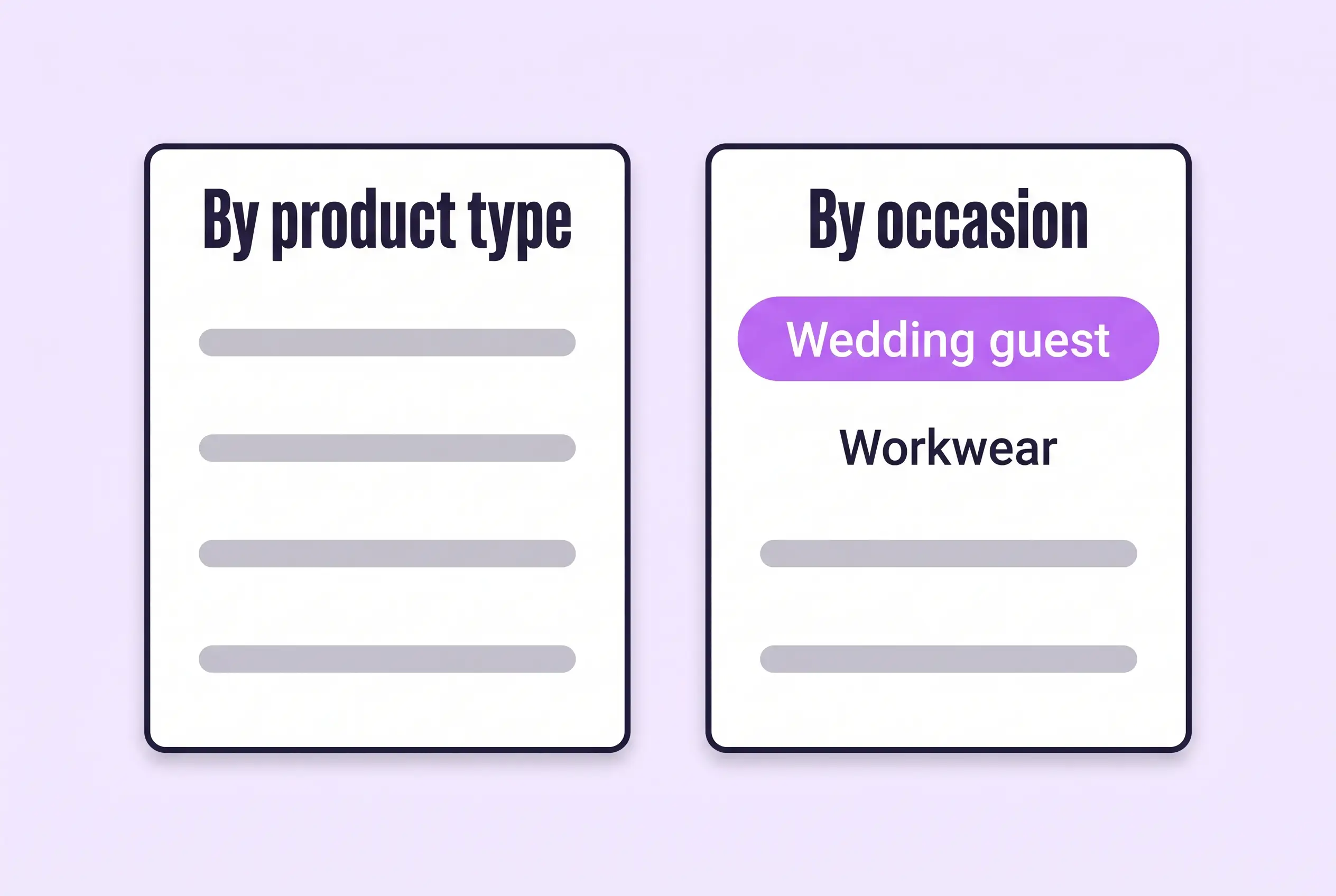
A menu sorted by product type expects the shopper to know the piece she wants. A menu sorted by occasion asks only what she is dressing for, then shows dresses, tops, shoes and bags together. That is how a stylist, not a salesperson, starts.
65%
Baymard scored the homepage and category navigation of 65% of mobile sites and 61% of desktop sites as mediocre or poor in its 2026 benchmark of 180+ top US and European stores.
Source: Baymard Institute, 2026, Homepage and Category Navigation UX 2026
33%
In a 2025 Baymard survey of 1,167 US online shoppers, 33% said they would start by scrolling the homepage when casually browsing for a visually driven product.
Source: Baymard Institute, 2025, Can users infer the breadth of your product catalog?
Baymard’s guideline on thematic browsing adds that category menus and search alone make it hard to find inspiration, which is the job an occasion path does (Baymard Institute, 2026). We found no study that isolates shop by occasion, so test the effect on your own store.
What does a finished shop by occasion look like?
A finished shop by occasion has three parts: occasion tags, one collection per occasion, and links in your menu and homepage.
Use one fixed list of occasions across the catalogue, so tags, collections, menu and descriptions agree. Each occasion is a product tag, and each tag feeds one smart collection. Shopify now calls automated collections smart collections, and they fill themselves from conditions such as a product tag (Shopify Help Center, 2026).
| Occasion tag | Collection title | The shopper’s moment |
|---|---|---|
| occasion-wedding-guest | Wedding guest | A ceremony or reception with a smart or formal dress code |
| occasion-workwear | Workwear | Office days and client meetings |
| occasion-holiday | Holiday | Trips away or the festive season, as your brand defines it |
| occasion-party | Party | Birthdays and nights out |
| occasion-date-night | Date night | Dinners and evenings out for two |
| occasion-everyday | Everyday | Casual days with no dress code |
If you also write occasion lines for AI assistants, use the same list, so your tags and descriptions agree. How to Write Shopify Descriptions That Get Your Clothes Recommended by AI shows how.
Not worth it if
Stores that sell for a single occasion, such as bridal only, can do less. One collection page is enough, and they can skip the Flow and the weekly run.
How do I check my store in two minutes?
Open your store on a phone and check whether a shopper can start from an occasion within two taps of the homepage.
- Open your homepage on a phone. Look at the first screen, then open the main menu.
- Look for an occasion path. Is there a link such as Wedding guest or Workwear, in the menu or on the homepage?
- Open one occasion link. Does it show dresses, tops and shoes together, or only one product type?
How do I tag products by occasion with an AI agent?
An AI agent can tag 20 products with occasions in minutes, and you approve every tag in a table before it is written.
Use Shopify Sidekick inside your admin, or the Shopify app for Claude or ChatGPT. All three follow the same five steps. Once a product carries an occasion tag, the matching smart collection picks it up on its own.
Back up before you change anything
Export a CSV first (Products › Export, then choose all products). Run the first batch on 3 products, check them, then do 20. Before any homepage layout change, work on a duplicate theme.
- ReadThe 20 newest products in one collection
- ProposeA table of tags, nothing written
- ApproveYou edit the table and reply apply
- WriteOnly the approved tags
- VerifyCheck five products, then the new collections on a phone
Copy the prompt that matches your tool.
Look at the 20 newest products in the collection [Dresses].
For each one, suggest up to 3 occasion tags from this list only:
occasion-wedding-guest, occasion-workwear, occasion-holiday,
occasion-party, occasion-date-night, occasion-everyday.
Base each choice on the title, description, fabric and colour.
Keep every tag the product already has. Add occasion tags only.
Never touch prices, inventory or discounts.
When I reply "apply", add only the approved tags to each product,
and remove the tag needs-occasion-tag from those products if they have it.

Show me a table first: product, suggested tags, one-line reason.
Do not change anything until I reply "apply".
Export a CSV backup first. The prompt changes nothing until you reply apply.
Using the Shopify app, read the 20 newest products in the collection [Dresses] in my Shopify store.
For each one, suggest up to 3 occasion tags from this list only:
occasion-wedding-guest, occasion-workwear, occasion-holiday,
occasion-party, occasion-date-night, occasion-everyday.
Base each choice on the title, description, fabric and colour.
Keep every tag the product already has. Add occasion tags only.
Never touch prices, inventory or discounts.
When I reply "apply", update the approved products one at a time.
Add only the approved tags, keep the existing tags, and remove the tag
needs-occasion-tag if the product has it. Tell me which products are done.

Show me a table first: product, suggested tags, one-line reason.
Do not change anything until I reply "apply".
Name Shopify in the prompt so the assistant uses the app. Export a CSV backup first.
- Run it on 3 products first. Click the Sidekick icon in any page of your Shopify admin, paste the prompt and read the table.
- Edit the table, then reply apply. Change any tag you would not choose yourself. Sidekick presents changes for your review before applying them, but read every row.
- Check five products, then run the next batch. Open five products in
Productsand confirm their Tags box shows the approved occasion tags.
Start with your best sellers
Tag your 20 best sellers first and check them on a phone before you run the rest.
Keep batches to 20 so you can read every row. A connected AI tool works only within the access you approve, and you cannot reduce that access later without uninstalling the app (Shopify Help Center, 2026). Data you share with Claude or ChatGPT is handled under that provider’s terms.
How do I tag products by occasion by hand, if I prefer?
By hand, tagging 60 products takes about 90 minutes in Shopify’s bulk editor: select products, add a Tags column, type the tags and save.
- Open the bulk editor. Go to
Products, tick the products you want to tag and click Bulk edit. - Add the Tags column. Click Columns and select Tags, so each product shows its tags in the table.
- Type the occasion tags and save. Use tags from the list, such as
occasion-wedding-guest, up to three per product. Click Save, and fix any error it shows.
Keep tags to ordinary letters, numbers and hyphens. Shopify warns that other symbols are ignored or treated as the same, which can break collection conditions (Shopify Help Center, 2026). For hundreds of products, export your CSV, edit the Tags column in a spreadsheet and import the file back. Do not sort the file: Shopify warns that sorting can disconnect variants and image URLs, and importing a sorted file might overwrite products with bad data (Shopify Help Center, 2026).
How do I turn the tags into occasion collections?
Create one smart collection per occasion, with the condition Product tag is equal to that occasion’s tag, and it fills itself.
- Add the collection. Go to
Products › Collectionsand click Add collection. Name it after the occasion, such as Wedding guest. - Set the condition. In the Products source, click Add condition, choose Product tag, is equal to, and enter
occasion-wedding-guest. In an older admin, set Collection type to Smart and add the same condition. - Publish it to your Online Store. Check that Online Store is selected under sales channels, add a collection image and click Save.
- Repeat for each occasion. Duplicate the first collection, change the title and the tag, then choose Online Store again. A duplicate is not published to any sales channel until you do.
Sidekick can also fill the collection form from a plain description, and it highlights each change for your review before you save (Shopify Help Center, 2026). Collections need a Basic plan or higher, because Shopify’s Starter plan does not support them (Shopify Help Center, 2026).
How do I add the occasions to my menu and homepage?
Add the six collections to your main menu as a Shop by occasion drop-down, then show them on your homepage.
Shopify says customers find a collection only after you link it in a menu, and the collection must be available on your Online Store first (Shopify Help Center, 2026). Add the menu items last, once each collection opens the right products.
- Create the header. Go to
Content › Menusand open your main menu. Click Add menu item, name it Shop by occasion and enter#in the link field, so the header opens the drop-down and goes nowhere. - Add one item per occasion. Click Add menu item, name it, and select the collection from the Collections list instead of pasting a URL. Shopify warns that pasted URLs can break and lead to a 404.
- Nest the items and save. Drag each occasion under the header with its handle icon, then click Save menu.
Most themes support up to two levels of nested drop-downs, and Shopify advises seven or fewer top-level menu items. Most themes also treat a drop-down header as a button, so put the header’s own link inside the drop-down if you want one (Shopify Help Center, 2026).
- Open the theme editor on your duplicate theme. Go to
Online Store › Themesand click Customize. - Add a Collection list section. On the Home page, click Add section and choose Collection list, then add one collection per occasion. The section name can differ by theme.
- Check it on a phone. Preview the page on a phone, tap each occasion and confirm the right products open. Then publish the theme.
The homepage block reaches shoppers who skip the menu. Sidekick can add sections your theme already includes while you are in the theme editor, but you must save its changes for them to take effect (Shopify Help Center, 2026).
How do I keep shop by occasion up to date as new products arrive?
Shopify Flow can flag every new product, and a weekly agent run turns each flag into occasion tags.
Shopify Flow is a free app on the Basic, Grow, Advanced and Plus plans (Shopify Help Center, 2026). Once a new product carries an occasion tag, its smart collection updates by itself, so the menu never needs another edit.
- Flag new products. Open
Apps › Flowand click Create workflow. Choose the trigger Product created and the action Add product tags, enterneeds-occasion-tag, then click Turn on workflow. - Or ask Sidekick to build it. On a desktop, open Flow, click the Sidekick icon and paste the prompt below. Flow must be installed and open, and you turn the generated workflow on yourself (Shopify changelog, Dec 11, 2025).
Create a workflow that starts when a product is created and adds the product tag needs-occasion-tag.Sidekick builds the workflow for you to review. It stays inactive until you turn it on.
- Run it weekly. Save the Sidekick tag prompt above as a skill:
Sidekick › plus icon › Skills › New Skill. Once a week, run it with “/” and the skill’s name, and change the product line to “Products: up to 20 products tagged needs-occasion-tag”.
Review each weekly batch the same way. The prompt removes the flag from each product you approve.
Which apps can help?
Start with the tools built into Shopify. Add a spreadsheet app only if you have hundreds of products to tag.
| App | What it does | Price | Checked | Best for |
|---|---|---|---|---|
| Shopify smart collections | Fill a collection from a condition such as a product tag | Built into Shopify; needs the Basic plan or higher | Oct 15, 2026 | One collection per occasion |
| Shopify Sidekick | Fills the collection form and builds Flow workflows from a description | Built into the Shopify admin | Oct 15, 2026 | Keeping everything in one place |
| Shopify Flow | Flags new products so none are missed | Free on Basic, Grow, Advanced and Plus | Oct 15, 2026 | Keeping tags current |
| Shopify app for Claude or ChatGPT | Reads and updates products from the assistant within the access you approve | Claude or ChatGPT plan terms apply | Oct 15, 2026 | Founders who already work in Claude or ChatGPT |
| Matrixify | Bulk tag updates through Excel, CSV or Google Sheets | Free for 10 products per file; Basic $20/month | Oct 15, 2026 | Catalogues of hundreds of products |
The personal layer
Occasion paths work the same way for every shopper.
Shop by occasion shows every shopper the same six paths. It cannot tell one shopper which dress suits her for a wedding in June. A personal AI stylist can, because it answers one shopper at a time from your own catalogue.
iWAND is an AI stylist for independent fashion brands on Shopify. It gives every shopper a personal stylist, with outfits, styling advice, try-on and size help built on the brand’s own catalogue.
iWAND is our product. Free to install; iWAND charges 5% only on the sales it makes.
Read: Grow Your Shopify Fashion Store with Styling: Salesperson to Stylist
How long does it take and what does it cost?
Setting up shop by occasion for your first 60 products takes about 2 hours with an AI agent and no extra cost.
These times are estimates for a first set-up, not measured results.
| Route | Time | Cost | Skills needed |
|---|---|---|---|
| By hand | About 3 hours for 60 products, including collections, menu and homepage | Free, on a Basic plan or higher | Editing in the Shopify admin |
| With an AI agent | About 2 hours for 60 products, including the Flow and your review | Free with Sidekick; your own plan if you use Claude or ChatGPT | Reading a table, approving rows |
| With an app | About 2 hours for 60 products, plus the same collection, menu and homepage steps | Free for 10 products per file; $20 a month beyond that | Working in a spreadsheet |
How do I know it’s fixed?
The fix is working when each occasion opens a collection of mixed pieces and views per session rise over several weeks.
Run the free Styling Score again once your menu and homepage link all six occasions, and check the ENG-01 card for this factor.
Check this on your store with the free Styling Score
Bots walk your store like a shopper. You get a score out of 100, a tier and a report.
Then watch Engagement in Google Analytics 4: views per session, average engagement time per session, and the views of your six occasion collection pages. Compare the 30 days before and after launch, and judge the trend over several weeks.
Where does this fit in Engagement?
Engagement has five factors, and this guide covers the first.
- ENG-01Shop by occasionStart from the moment, not the product type.You are here
- ENG-02Shoppable looksLooks shoppers can browse and buy from.
- ENG-03Personalized outfit recommendationsOutfits chosen for one shopper.
- ENG-04Style editsCurated collections that read like a stylist’s picks.
- ENG-05Styling filtersFit, length and occasion filters on collections.
Part of Grow Your Shopify Fashion Store with Styling: Salesperson to Stylist, our guide to turning a Shopify fashion store from a salesperson into a stylist.
What else do founders ask about shop by occasion?
Founders most often ask these five questions.
How many occasions should I add?
Start with six: wedding guest, workwear, holiday, party, date night and everyday. Tag your 20 newest products first, then work back through the catalogue, giving each product one to three occasions. Add a seventh only when shoppers keep asking for it, such as a graduation or a baby shower.
Should I use tags or metafields for occasions?
Use tags to start. A smart collection can match a product tag directly, and tags need no theme work. Shopify allows up to 250 tags per product and advises ordinary letters, numbers and hyphens, so occasion-wedding-guest works. Move to metafields later only if you want occasion details shown on the product page.
Do I need an app to add shop by occasion?
No. Smart collections, menus, Sidekick and Shopify Flow are built into Shopify or free, and they cover the whole job. Collections need a Basic plan or higher, and Flow runs on Basic, Grow, Advanced and Plus. Add a spreadsheet app such as Matrixify only if you want to tag hundreds of products from one file.
How long until shoppers browse more?
Nobody can promise a date or a lift. Compare views per session and visits to your six occasion collections for the 30 days before and after launch, and judge the trend over several weeks. Smaller stores may need longer before a clear pattern appears.
Can AI do this for each shopper?
Yes, with a personal AI stylist. Shop by occasion shows every shopper the same six paths, while a personal AI stylist answers one shopper at a time from your own catalogue. iWAND is one; iWAND is our product. Free to install; iWAND charges 5% only on the sales it makes.
Sources
- Baymard Institute. Homepage and Category Navigation UX 2026: 10 Pitfalls and Best Practices. Updated Oct 13, 2026. https://baymard.com/research-articles/ecommerce-navigation-best-practice
- Baymard Institute. Ecommerce Homepage UX: Can Users Infer the Breadth of Your Product Catalog? Updated Apr 10, 2025. https://baymard.com/research-articles/inferring-product-catalog-from-homepage
- Baymard Institute. Thematic or Guided Browsing (guideline 249). Updated Jan 2026. https://baymard.com/guidelines/249-thematic-or-guided-browsing
- Shopify Help Center. Creating and modifying smart collections. Checked Oct 15, 2026. https://help.shopify.com/en/manual/products/collections/smart-collections/create
- Shopify Help Center. Legacy smart collections. Checked Oct 15, 2026. https://help.shopify.com/en/manual/products/collections/smart-collections
- Shopify Help Center. Creating collections and adding products. Checked Oct 15, 2026. https://help.shopify.com/en/manual/products/collections/create-collection
- Shopify Help Center. Adding menu links for your collections. Checked Oct 15, 2026. https://help.shopify.com/en/manual/products/collections/make-collections-findable
- Shopify Help Center. Add, remove, or edit menu items in your online store. Checked Oct 15, 2026. https://help.shopify.com/en/manual/online-store/menus-and-links/editing-menus
- Shopify Help Center. Set up drop-down menus in your online store. Checked Oct 15, 2026. https://help.shopify.com/en/manual/online-store/menus-and-links/drop-down-menus
- Shopify Help Center. Tag formats. Checked Oct 15, 2026. https://help.shopify.com/en/manual/products/details/tags
- Shopify Help Center. Bulk editing. Checked Oct 15, 2026. https://help.shopify.com/en/manual/shopify-admin/productivity-tools/bulk-editing
- Shopify Help Center. Exporting products. Checked Oct 15, 2026. https://help.shopify.com/en/manual/products/import-export/export-products
- Shopify Help Center. Sidekick. Checked Oct 15, 2026. https://help.shopify.com/en/manual/ai-powered-tools/sidekick
- Shopify Help Center. Getting help and guidance from Sidekick. Checked Oct 15, 2026. https://help.shopify.com/en/manual/ai-powered-tools/sidekick/help-and-guidance
- Shopify Help Center. Using skills with Sidekick. Checked Oct 15, 2026. https://help.shopify.com/en/manual/ai-powered-tools/sidekick/skills
- Shopify Help Center. Connecting your Shopify store to AI tools. Checked Oct 15, 2026. https://help.shopify.com/en/manual/apps/connecting-ai-tools
- Shopify Help Center. Shopify Flow. Checked Oct 15, 2026. https://help.shopify.com/en/manual/shopify-flow
- Shopify Help Center. Flow triggers and Flow actions (Product created, Add product tags). Checked Oct 15, 2026. https://help.shopify.com/en/manual/shopify-flow/reference/triggers · https://help.shopify.com/en/manual/shopify-flow/reference/actions
- Shopify Changelog. Create Flow automations with Sidekick. Dec 11, 2025. https://changelog.shopify.com/posts/create-flow-automations-with-sidekick
- Shopify App Store. Listings for Shopify Flow · Matrixify. Checked Oct 15, 2026.
Engagement
Check every Engagement factor on your store
The free Styling Score walks all five factors and shows which are Done, Halfway or Not yet.
Master pillar
From a salesperson into a stylist
Part of Grow Your Shopify Fashion Store with Styling: Salesperson to Stylist, our guide to turning a Shopify fashion store from a salesperson into a stylist.