

At a glance
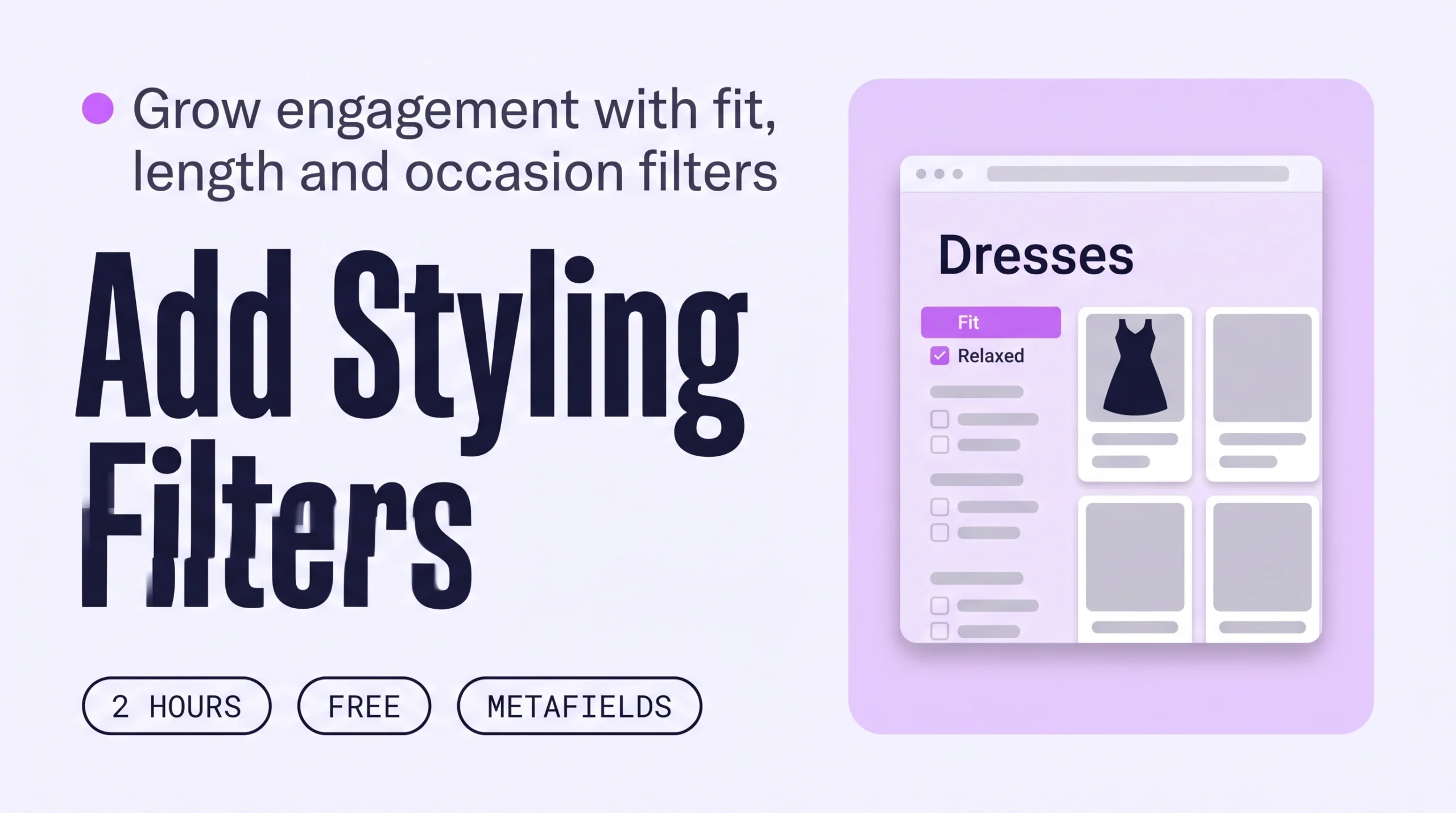
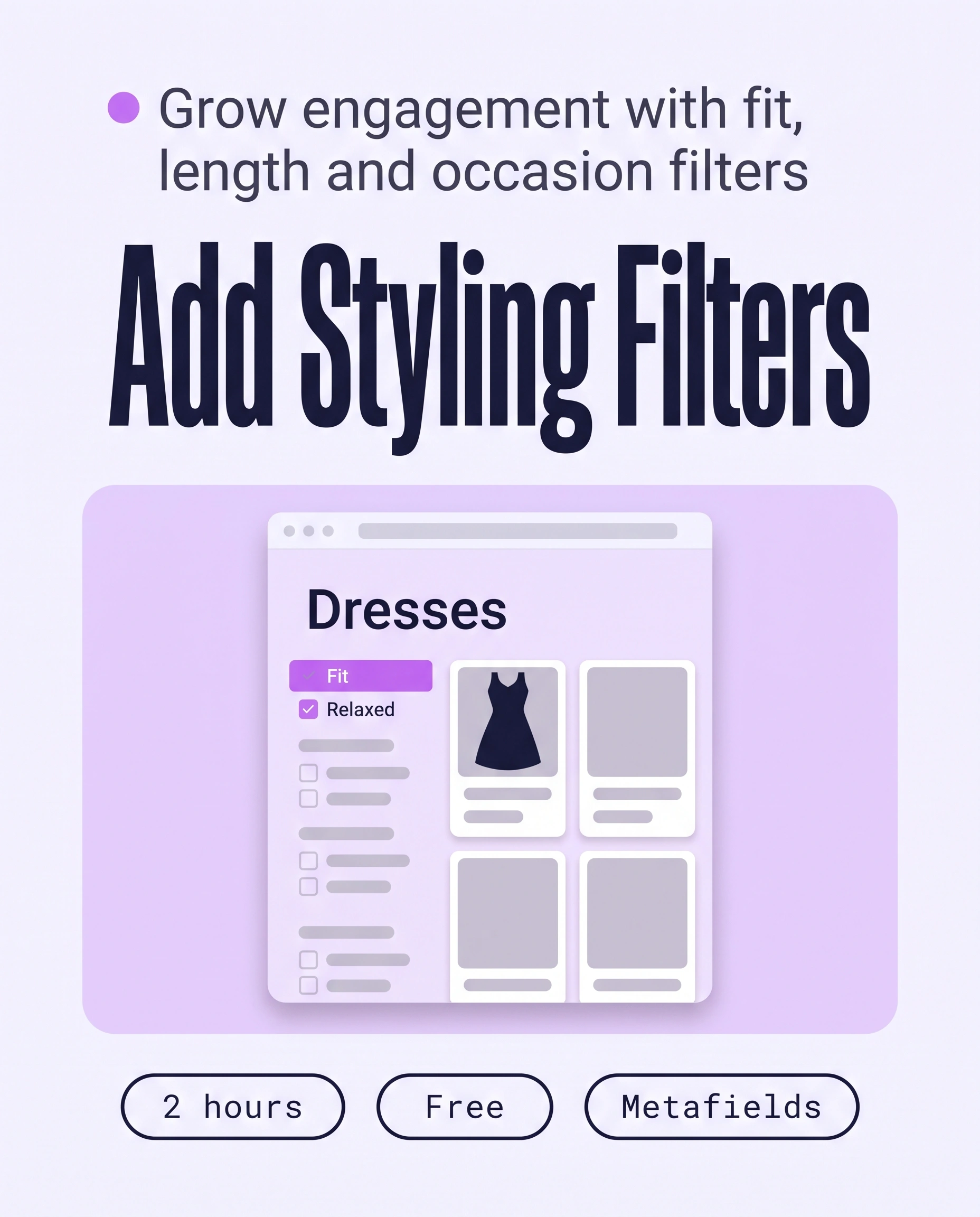
Add three styling filters, Fit, Length and Occasion, to your Shopify collection pages. Create a metafield for each, have Sidekick or Claude fill them in for 20 products at a time, then switch them on in the free Search & Discovery app. Shoppers narrow by how a piece fits and when it is worn, so they browse more.
Time: about 2 hours
Cost: free
Developer: not needed
A shopper opens your Dresses collection. It holds 90 pieces, and she is dressing for a wedding in June. She can filter by size, colour and price, but not by length or by occasion, so she scrolls, tires and leaves.
Styling filters are collection-page filters that let shoppers narrow products by fit, length and occasion, not only by size, colour and price. This guide is about Engagement, which counts product views, pages per session and time on site. More browsing means more shoppers reaching a piece they want to buy.
Part of Grow Your Shopify Fashion Store with Styling: Salesperson to Stylist, our guide to turning a Shopify fashion store from a salesperson into a stylist.
In this guide
A salesperson
lets shoppers filter by size, colour and price.
A stylist
lets shoppers filter by fit, length and the occasion they are dressing for.
Why do styling filters grow Engagement?
Styling filters grow Engagement because shoppers narrow a long collection to pieces that suit them, then keep exploring those pieces.
A filter turns a 90-piece collection into a short list for one need. Shoppers who narrow a collection stop scrolling and start comparing, which is what Engagement measures. Apparel shoppers also lean on browsing, so what a collection page offers matters.
67–90%
In Baymard’s usability testing, sites with mediocre product list tools saw 67% to 90% of shoppers abandon while looking for a product. Sites with slightly better tools saw 17% to 33%.
Source: Baymard Institute, Product Lists UX research (page checked Oct 16, 2026)
10%
Only 10% of apparel participants in Baymard’s tests used search at any point. Every participant relied mainly on menus and manual browsing.
Source: Baymard Institute, 2024, New Apparel & Accessories UX Research
What do good styling filters look like?
Good styling filters use short lists of fixed words, so every product answers each question the same way.
Pick one list per filter and use it on every product. Keep each list short, because a filter displays at most 100 values on your store (Shopify Help Center, 2026). This guide uses three lists:
| Filter | Values | Used on |
|---|---|---|
| Fit | fitted, regular, relaxed, oversized | Every piece, 1 value |
| Length | cropped, mini, knee-length, midi, maxi, full-length | Dresses, skirts, tops, outerwear, 1 value |
| Occasion | wedding guest, workwear, holiday, party, date night, everyday | Every piece, 1 to 3 values |
If you also add Shop by Occasion, reuse the same six occasion words so filters, collections and descriptions agree. The guide on how to write Shopify descriptions that get your clothes recommended by AI uses the same list.
Not worth it if
Collections with fewer than 30 products, or stores that sell one product type, can skip fit and length. Size and Colour filters are enough there.
How do I check my store in two minutes?
Open your best-selling collection on your phone and check whether a shopper can filter by fit, length and occasion.
- Open your best-selling collection. On your phone, open it on your live store and tap Filter.
- Look for the three questions. Check whether Fit, Length and Occasion appear beside Size and Colour.
- Apply one filter. Choose a value such as midi. The product count should fall, and every product shown should match.
Check this on your store with the free Styling Score
Bots walk your store like a shopper. You get a score out of 100, a tier and a report.
How do I add styling filters to Shopify collections?
Add styling filters in three moves: create a metafield for each filter, fill in a value on every product, then switch the filters on.
Shopify’s free Search & Discovery app builds filters from product options, metafields and metaobjects. Use metafields rather than tags. Shopify says a metafield filter gives more control over which values shoppers see (Shopify Help Center, 2026).
Back up before you change anything
Export a CSV first: Products › Export, then choose all products. Before you turn filters on, work on a duplicate theme.
Start by creating the three metafields. This takes about 10 minutes.
- Open any product. Go to
Products, open a product and scroll to Metafields. Click Add definition. - Create Fit. Enter the name Fit, choose the type Single line text and keep One value. Shopify generates the key
custom.fit. Click Save. - Create Length. Repeat with the name Length. The key becomes
custom.length. - Create Occasion. Repeat with the name Occasion, then change One value to List of values so a piece can suit up to three occasions. If a Validation section lets you limit accepted values, enter your fixed list there.
Shopify’s steps for custom definitions are in Creating custom metafield definitions (Shopify Help Center, 2026).
How do I fill in fit, length and occasion with an AI agent?
An AI agent can propose Fit, Length and Occasion values for 20 products in minutes, and you approve every row before it is written.
Use Shopify Sidekick inside your admin, or the Shopify connector for Claude or ChatGPT. All follow the same five steps.
- ReadThe 20 newest products in one collection
- ProposeA table of Fit, Length and Occasion, nothing written
- ApproveYou edit the table and reply apply
- WriteOnly the approved rows
- VerifyOpen five products and one filtered collection on a phone
Copy the prompt that matches your tool.
Products: [the 20 newest products in the collection Dresses]

For each product, suggest a value for three metafields, using these lists only:
Fit (choose 1): fitted, regular, relaxed, oversized
Length (choose 1): cropped, mini, knee-length, midi, maxi, full-length
Occasion (choose 1 to 3): wedding guest, workwear, holiday, party, date night, everyday
Base each choice on the title, description, fabric, fit notes and measurements already on the product.
Do not invent details. If a product does not support a value, write "unsure" instead of guessing.

Change only the metafields Fit, Length and Occasion. Never touch prices, inventory or discounts.
When I reply "apply", write only the approved values, and remove the tag needs-styling-filters
from those products if they have it.

Show me a table first: product, suggested Fit, suggested Length, suggested Occasion, one-line reason.
Do not change anything until I reply "apply".
Export a CSV backup first. The prompt changes nothing until you reply apply.
Using the Shopify connector, read [the 20 newest products in the collection Dresses] in my Shopify store.

For each product, suggest a value for three metafields, using these lists only:
Fit (choose 1): fitted, regular, relaxed, oversized
Length (choose 1): cropped, mini, knee-length, midi, maxi, full-length
Occasion (choose 1 to 3): wedding guest, workwear, holiday, party, date night, everyday
Base each choice on the title, description, fabric, fit notes and measurements already on the product.
Do not invent details. If a product does not support a value, write "unsure" instead of guessing.

Change only the metafields custom.fit, custom.length and custom.occasion. Never touch prices, inventory or discounts.
When I reply "apply", update the approved products one at a time, and remove the tag needs-styling-filters
from each product if it has it. Tell me which products are done.
If you cannot write metafields, give me the approved table as columns I can paste into the Shopify bulk editor.

Show me a table first: product, suggested Fit, suggested Length, suggested Occasion, one-line reason.
Do not change anything until I reply "apply".
Mention Shopify by name so the assistant uses the connector. Export a CSV backup first.
- Run it on 3 products first. Open Sidekick from any page in your Shopify admin, paste the prompt and read the table.
- Edit the table, then reply apply. Sidekick presents changes for review before applying them, but read every row. Replace any “unsure” with your own answer.
- Check the values on the product. Open a product and read its Metafields section. If Sidekick cannot write the values, paste the approved table into the bulk editor, as described below.
Start with your best-selling collection
Fill in your biggest collection first and turn filters on there. Shoppers browse most where the products are.
A connected AI tool changes items one at a time, so a large batch can stop partway. Keep batches to 20 and finish any leftovers in the admin (Shopify Help Center, 2026). Data you share with Claude or ChatGPT is handled under that provider’s terms.
How do I fill in the values by hand, if I prefer?
By hand, the bulk editor lets you fill in one metafield for many products at once, at about 3 minutes per product.
- Select the products. Go to
Products, tick the products in one collection and click Bulk edit. - Add the columns. Click Columns and select Fit, Length and Occasion.
- Type, then fill down. Click a cell, type a value from your list and drag the cell’s fill handle across the cells below it for products with the same value.
- Save and fix errors. Click Save. If Shopify reports invalid values, correct them and save again (Shopify Help Center, 2026).
How do I turn the filters on in Shopify?
Turn the filters on in three places: Search & Discovery for each filter, your theme for display, and your phone for a test.
- Check that your theme supports filtering. Go to
Content › Menus. If your theme does not support filtering, a message appears in the Collection and search filters section, and the filters you build will not display. - Add the filters. Go to
Apps › Search & Discovery › Filters › Add filter. Choose the Fit product metafield as the Source, set the Filter label to Fit and click Save. Repeat for Length and Occasion. - Put them in order. Drag the filters on the Filters page. A good order is Size, Fit, Length, Occasion, Colour, Price.
- Sort the values. Open Length, set Sort to Manually and drag the values from mini to full-length. Or click Reorder for me to sort with AI.
- Hide empty values. In the app, go to
Settings › Filters › Empty valuesand choose Hide, so shoppers never see a value with no products. - Switch filtering on in your theme. Open
Online Store › Themes › Customize, open a collection page and turn on filtering in the Product grid section. In the theme editor, you can also ask Sidekick: “Turn on filters for my collection pages.” - Test on your phone. Choose Fit and Length together. Filters from different groups combine, so the count should fall.
Know the limits. A store can have up to 25 filters, and a collection with more than 5,000 products shows no filters. The price filter hides when a shopper picks a currency other than your default. New values can take 24 to 48 hours to appear, and saving a small edit to a product can trigger a refresh (Shopify Help Center, 2026).
Also label Size clearly. Baymard found that shoppers misread or skip size filters that mix size types, so use the Filter label and value groups to make each size type clear (Baymard Institute, 2024).
How do I keep styling filters up to date as new products arrive?
Shopify Flow can tag every new product, and a weekly agent run fills in its Fit, Length and Occasion values.
Shopify Flow is a free app on the Basic, Grow, Advanced and Plus plans (Shopify Help Center, 2026).
- Tag new products. Open
Apps › Flow › Create workflow. Choose the trigger Product created and the action Add product tags, enterneeds-styling-filters, then click Turn on workflow. - Or ask Sidekick to build it. On a desktop, open Sidekick in Flow and paste the prompt below. Sidekick-generated workflows are inactive by default, so review, test and turn yours on.
Create a workflow that starts when a product is created and adds the product tag needs-styling-filters.Sidekick builds the workflow for you to review. It stays inactive until you turn it on.
- Run it weekly. Save the Sidekick prompt above as a skill:
Sidekick › plus icon › Skills › New Skill. Once a week, run it with “/” and the skill’s shortcut, and change the product line to “Products: up to 20 products tagged needs-styling-filters” (Shopify Help Center, 2026).
Review each weekly batch the same way. The prompt removes the tag from each product you approve.
Which apps can help?
Start with Search & Discovery, which is free. Add another filter app only when you need merchandising rules or a very large catalogue.
| App | What it does | Price | Checked | Best for |
|---|---|---|---|---|
| Shopify Search & Discovery | Builds filters from product options, metafields and metaobjects; groups, sorts and reorders values | Free | Oct 16, 2026 | Most independent fashion stores |
| Shopify Sidekick | Fills in product fields from chat, can switch on theme filtering and builds Flow workflows | Built into the Shopify admin | Oct 16, 2026 | Keeping everything in one place |
| Shopify Flow | Tags new products so none are missed | Free on Basic, Grow, Advanced and Plus | Oct 16, 2026 | Keeping filters current |
| Matrixify | Bulk updates metafields through Excel, CSV or Google Sheets | Free for up to 10 products per file; Basic $20/month | Oct 16, 2026 | Large catalogues edited in a spreadsheet |
| Fast Simon AI Search & Filters | Adds its own search and filters, with custom product filters from the Starter plan | Free plan with 100 monthly sessions; Starter $39.99/month | Oct 16, 2026 | Large catalogues that need merchandising rules |
The personal layer
Filters work the same way for every shopper.
Styling filters ask every shopper the same three questions: how should it fit, how long, and for what. They cannot tell one shopper which dress suits her for a June wedding. A personal AI stylist can, because it answers one shopper at a time from your own catalogue.
iWAND is an AI stylist for independent fashion brands on Shopify. It gives every shopper a personal stylist, with outfits, styling advice, try-on and size help built on the brand’s own catalogue.
iWAND is our product. Free to install; iWAND charges 5% only on the sales it makes.
Read: Grow Your Shopify Fashion Store with Styling: Salesperson to Stylist
How long does it take and what does it cost?
Adding styling filters for your first 60 products takes about 2 hours with an AI agent, and Sidekick makes it free.
These times are estimates for a first batch, not measured results. Each route includes about an hour for set-up.
| Route | Time | Cost | Skills needed |
|---|---|---|---|
| By hand | About 3 minutes per product in the bulk editor; about 4 hours for 60 | Free | Using the Shopify admin and bulk editor |
| With an AI agent | About 20 minutes per batch of 20; about 2 hours for 60 | Free with Sidekick; your own plan if you use Claude or ChatGPT | Reading a table, approving rows |
| With an app | About 2 hours for 60, plus preparing a spreadsheet | $20 a month for Matrixify Basic | Working in a spreadsheet |
How do I know it’s fixed?
The fix is working when a shopper can filter any collection by fit, length and occasion, and browsing numbers rise over several weeks.
Run the free Styling Score again once your best-selling collections carry values, and check the ENG-05 card for this factor.
Check this on your store with the free Styling Score
Bots walk your store like a shopper. You get a score out of 100, a tier and a report.
Then watch Engagement: product views, pages per session and time on site in Shopify analytics or GA4. Compare the 30 days before and after you switch the filters on, and judge the trend over at least four weeks.
Where does this fit in Engagement?
Engagement has five factors, and this guide covers the fifth.
- ENG-01Shop by occasionStart from the moment, not the product type.
- ENG-02Shoppable looksLooks shoppers can browse and buy from.
- ENG-03Personalized outfit recommendationsOutfits chosen for one shopper.
- ENG-04Style editsCurated collections that read like a stylist’s picks.
- ENG-05Styling filtersFit, length and occasion filters on collections.You are here
Part of Grow Your Shopify Fashion Store with Styling: Salesperson to Stylist, our guide to turning a Shopify fashion store from a salesperson into a stylist.
What else do founders ask about styling filters?
Founders most often ask these six questions.
What are styling filters on a Shopify store?
Styling filters are collection-page filters built on how clothes are worn: fit, length and occasion. They sit beside Size, Colour and Price. Each filter reads a product metafield, so every product must carry a value from one fixed list. Shoppers then narrow a long collection to pieces that suit a specific need.
Do I need an app to add fit and length filters?
No. Shopify’s Search & Discovery app is free, and metafields, the bulk editor and Sidekick are built into your admin. Shopify Flow is free on Basic plans and above. Add a paid filter app only if you need merchandising rules or a very large catalogue. The core set-up needs no developer.
How many filters should a fashion collection show?
Start with six: Size, Fit, Length, Occasion, Colour and Price. Shopify allows up to 25 filters per store, but more filters crowd the page, especially on a phone. Add another only when shoppers keep asking for it. Put the styling filters next to Size so shoppers see them without scrolling.
Why are my new filters not showing on the collection page?
Check four things. Your theme must support filtering and have it switched on, in the Product grid section on Shopify-built themes. The collection must hold 5,000 products or fewer. Each product needs a value in the metafield. New values can take 24 to 48 hours to appear, so wait a day or save a small edit to one product.
How long until styling filters change how shoppers browse?
Nobody can promise a date or a result. Compare Engagement for the 30 days before and after you switch the filters on, using product views, pages per session and time on site in Shopify analytics or GA4. Judge the trend over at least four weeks, and avoid changing other collection settings in the same period.
Can AI give each shopper their own filters?
Yes, in a different way. A personal AI stylist asks one shopper what she needs and picks pieces from your catalogue for her. iWAND is our product, an AI stylist for independent fashion brands on Shopify. Free to install; iWAND charges 5% only on the sales it makes. Filters still help shoppers who prefer to browse.
Sources
- Shopify Help Center. Adding filters with Shopify Search & Discovery. Checked Oct 16, 2026. https://help.shopify.com/en/manual/online-store/storefront-search/search-and-discovery-filters
- Shopify Help Center. Add storefront filtering. Checked Oct 16, 2026. https://help.shopify.com/en/manual/online-store/themes/customizing-themes/common-customizations/storefront-filters
- Shopify Help Center. Creating custom metafield definitions. Checked Oct 16, 2026. https://help.shopify.com/en/manual/custom-data/metafields/metafield-definitions/creating-custom-metafield-definitions
- Shopify Help Center. Bulk editing. Checked Oct 16, 2026. https://help.shopify.com/en/manual/shopify-admin/productivity-tools/bulk-editing
- Shopify Help Center. Sidekick. Checked Oct 16, 2026. https://help.shopify.com/en/manual/ai-powered-tools/sidekick
- Shopify Help Center. Getting help and guidance from Sidekick. Checked Oct 16, 2026. https://help.shopify.com/en/manual/ai-powered-tools/sidekick/help-and-guidance
- Shopify Help Center. Using skills with Sidekick. Checked Oct 16, 2026. https://help.shopify.com/en/manual/ai-powered-tools/sidekick/skills
- Shopify Help Center. Shopify connector for Claude. Checked Oct 16, 2026. https://help.shopify.com/en/manual/ai-powered-tools/connecting-ai-tools/shopify-connector-for-claude
- Shopify Help Center. Shopify Flow. Checked Oct 16, 2026. https://help.shopify.com/en/manual/shopify-flow
- Shopify Help Center. Creating workflows manually or from a template. Checked Oct 16, 2026. https://help.shopify.com/en/manual/shopify-flow/create/create-workflow
- Shopify Help Center. Flow triggers. Checked Oct 16, 2026. https://help.shopify.com/en/manual/shopify-flow/reference/triggers
- Baymard Institute. Product Lists UX research. Page checked Oct 16, 2026. https://baymard.com/research/ecommerce-product-lists
- Baymard Institute. New Apparel & Accessories UX Research: 3 High-Level Takeaways from 1,765 Hours of Testing. October 30, 2024. https://baymard.com/research-articles/apparel-ecommerce-ux-research-launch
- Shopify App Store. Listings for Shopify Search & Discovery · Shopify Flow · Matrixify · Fast Simon AI Search & Filters. Checked Oct 16, 2026.
Engagement
Check every Engagement factor on your store
The free Styling Score walks all five factors and shows which are Done, Halfway or Not yet.
Master pillar
From a salesperson into a stylist
Part of Grow Your Shopify Fashion Store with Styling: Salesperson to Stylist, our guide to turning a Shopify fashion store from a salesperson into a stylist.