

At a glance
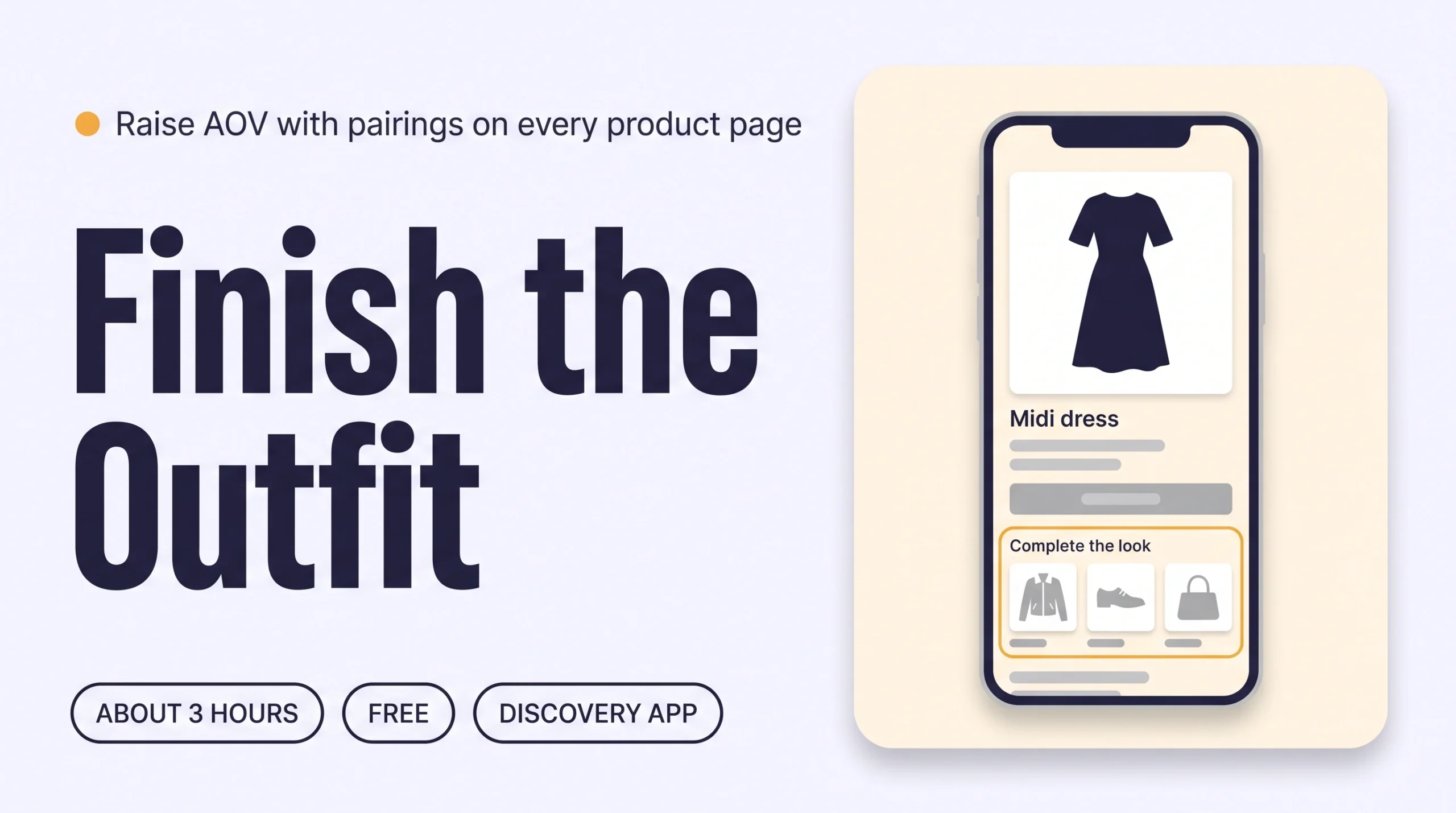
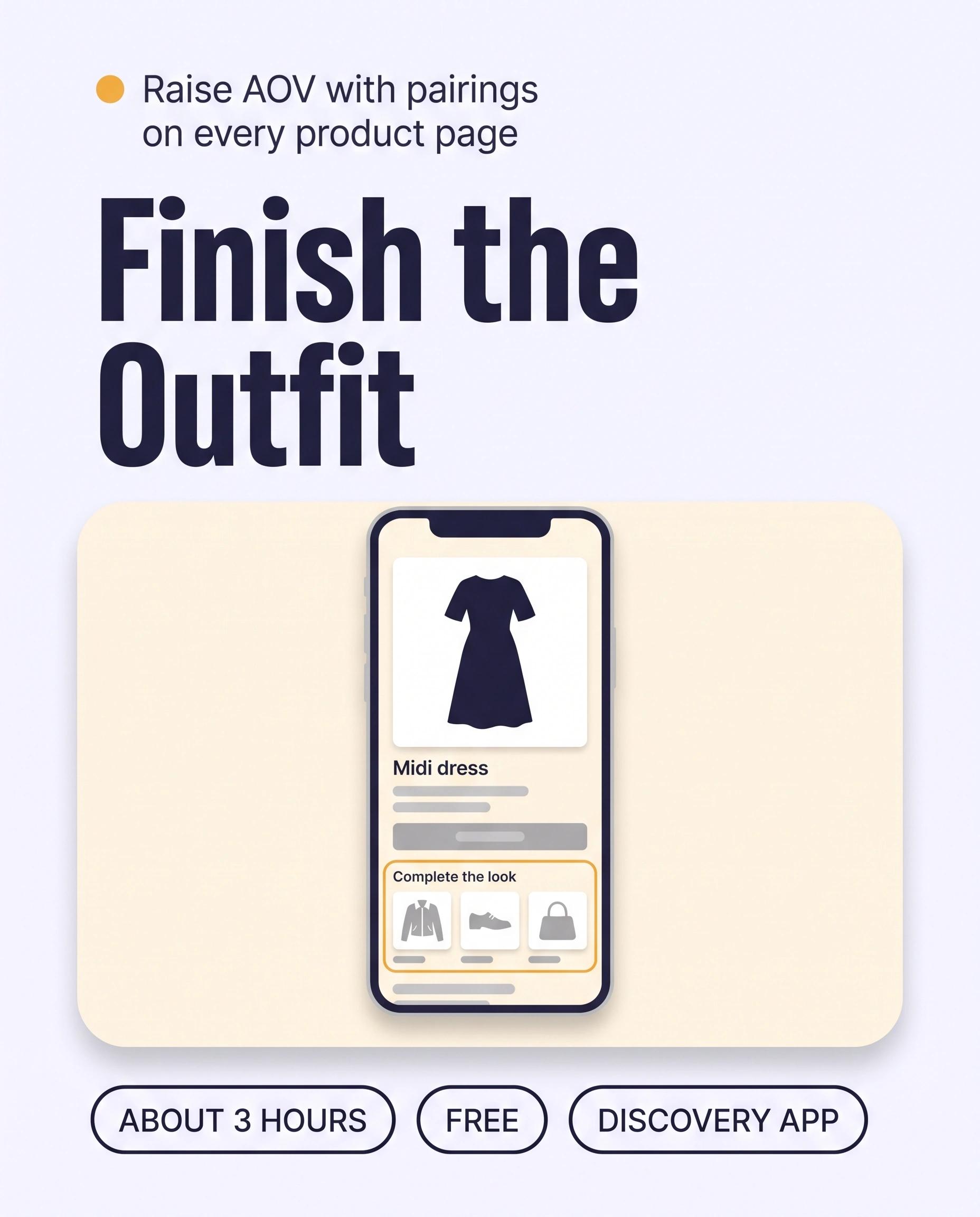
Complete the look on Shopify means every product page suggests the pieces that finish the outfit. Pick two to four pairings for each best seller, add them as Complementary products in the Search & Discovery app, and show the block on your product page. Shoppers then add more pieces per order, which raises AOV.
Time: about 3 hours
Cost: free
Developer: not needed
A shopper adds a dress to her cart and leaves. Nothing on the page showed her the jacket, shoes and bag that would finish the outfit.
Complete the look is a product-page section that suggests the pieces that finish the outfit around the item the shopper is viewing. It grows AOV, the stage that measures average order value, by turning one item into a full outfit.
This guide is about the same pairing for every shopper on a product page. To sell a whole look from a look page, read Shop the Look on Shopify: How to Sell the Whole Outfit and Raise Order Value. The look-page build is in How to Build a Shoppable Lookbook on Shopify That Keeps Shoppers Exploring.
Part of Grow Your Shopify Fashion Store with Styling: Salesperson to Stylist, our guide to turning a Shopify fashion store from a salesperson into a stylist.
In this guide
A salesperson
lets each product page stand alone and hopes the shopper builds the outfit.
A stylist
finishes the outfit on every page with the pieces that belong with it.
Why does Complete the Look raise average order value?
Complete the Look raises average order value because it puts the next piece in front of the shopper at the moment she decides, so the order holds two or three items instead of one.
The shopper already trusts the item she is viewing. A suggestion from the same brand, styled to go with it, is the easiest second item to say yes to.
26%
Of revenue came from visits where the shopper clicked a product recommendation, even though those visits were only 7% of all visits, in data from more than 150 million shoppers.
Source: Salesforce, 2017, Personalization in Shopping report
68%
Of desktop ecommerce sites in Baymard’s product page benchmark fail to give shoppers enough information in their cross-sell suggestions, such as a full title, a price or ratings.
Source: Baymard Institute, 2021, 6 List Item Attributes to Include for Cross-Sell Recommendations
What does a finished Complete the Look section look like?
A finished Complete the Look section sits under the add-to-cart button, shows three or four pieces that style with the item, and lets the shopper open every piece.
- Easy to find: a pairing section on every best-selling product page, visible without a tap.
- The right pieces: two to four pieces from other categories that make an outfit, not near copies of the item.
- Ready to buy: each piece shows a photo, a full title and a price, and is in stock.
How do I check my store in two minutes?
You can check Complete the Look in two minutes by opening three best sellers on your phone and scrolling below the add-to-cart button.
- Open three best sellers on your phoneScroll below the add-to-cart button and look for a section such as “Complete the look” or “Pairs well with”.
- Read the suggestionsEach piece should show a photo, a full title and a price, and come from a different category than the item.
- Tap every pieceEach one should open a product page and be in stock. A section that is missing or shows only near copies of the item means the factor is not done.
Check this on your store with the free Styling Score
Bots walk your store like a shopper. You get a score out of 100, a tier and a report.
How do I add Complete the Look by hand in Shopify?
You add Complete the Look by hand in Shopify by choosing pairings for each best seller, saving them in the Search & Discovery app, and adding the Complementary products block to your product page.
Shopify’s own tools do the whole job, so you need no code. Plan about three hours for your 20 best sellers.
Work on a duplicate theme for layout changes
Before you change the product page, duplicate your theme (Online Store › Themes) and edit the copy. Before an agent changes many products, export a CSV backup (Products › Export).
How do I choose the pairings?
- List your 20 best sellersShopify analytics shows them under
Analytics › Reports › Sales by product. Start there, because these pages get the most visits. - Choose two to four pieces for eachPick pieces from other categories by role: a layer, a top or bottom, shoes and an accessory. Match colour, fabric, occasion and season.
- Check each piece can showShopify only shows a piece that is Active, published to the Online Store and in stock, with a price above $0.00.
How do I add the complementary products in Shopify?
- Install Shopify Search & DiscoveryIt is a free app from Shopify. Open it from
Apps › Search & Discovery. - Open Product recommendationsClick Product recommendations, then Add recommendations, and select the product you want to customize.
- Select the complementary productsChoose up to 10 under Complementary products. Three or four is enough for an outfit. Click Save.
- Repeat, or use Bulk editTo add pairings to several products at once, select them on the Recommendations page, click Bulk edit, choose the recommendations for each product and click Save.
How do I show the block on the product page?
- Open the product template on your duplicate themeGo to
Online Store › Edit theme › Productsand select Default product, or the template you use. - Add the blockClick Complementary products if it is already there, or click + Add block and select Complementary products. Only compatible themes offer this block, and one can appear per product page.
- Set the sizeSet Maximum products to show to 4 so the section stays short. The theme decides the heading and layout.
- Save, publish and test on a phonePublish the theme copy, then open three of your best sellers and tap each suggested piece.
How do I add Complete the Look faster with an AI agent?
An AI agent proposes pairings for your best sellers in minutes, and you approve each one before anything is saved.
Deciding which pieces belong together is the slow part. The agent follows five steps, so nothing changes until you say so.
- ReadYour 20 best sellers and the catalogue
- ProposeA table of pairings, nothing saved
- ApproveYou edit the table and say apply
- WriteOnly the approved rows
- VerifyOpen five product pages on a phone
Use Sidekick in your Shopify admin, or connect your store to Claude or ChatGPT and approve access first. Add “Use my connected Shopify store.” as the first line. If your agent cannot save Complementary products itself, copy the approved table into Bulk edit by hand.
Look at the 20 best-selling products in my store, or in the collection [Dresses].
For each one, propose 2 to 4 complementary products from my catalogue.
Rules: choose pieces from other categories [Tops, Outerwear, Shoes, Accessories]; use only products that are active, published to the Online Store and in stock; pieces must work in one outfit by colour, fabric, occasion and season; never pair a product with itself or a near copy.
Write a one-line reason for each pairing in my brand voice. Examples of my voice:
"[Example sentence 1]"
"[Example sentence 2]"
Show me a table: product, suggested complementary products, reason.
Do not change anything until I reply "apply".
When I reply "apply", set the Complementary products for each approved row, and tell me if you cannot.
Do not change prices, inventory or discounts. Do not delete anything.
Show me a table first. The prompt changes nothing until you reply apply.
Edit the table before you apply
Swap any pair you would not wear together, and keep one piece in each set that is easy to add: an accessory or a layer.
How do I keep Complete the Look up to date?
You keep Complete the Look up to date by tagging every new product in Shopify Flow and pairing the tagged products once a week.
New products arrive with no pairings, and a sold-out piece disappears from the section because Shopify only shows complementary products that are in stock.
- Build the FlowIn Sidekick, paste the first prompt below. Sidekick builds a Shopify Flow workflow from a plain description. Check it uses the Product created trigger and the Add product tags action, then turn it on.
- Run the weekly promptOnce a week, paste the second prompt below, review the table and reply apply.
- Check on a phoneOpen two of the paired products on your live store.
Create a Shopify Flow workflow.
Trigger: when a product is created.
Action: add the tag needs-pairing to that product.
Show me the workflow before you turn it on.
This prompt builds the workflow only. Review it before you turn it on.
Look at up to 20 products tagged needs-pairing.
For each one, propose 2 to 4 complementary products from other categories [Tops, Outerwear, Shoes, Accessories]. Use only products that are active, published to the Online Store and in stock.
Write a one-line reason for each pairing in my brand voice.
Show me a table: product, suggested complementary products, reason.
Do not change anything until I reply "apply".
When I reply "apply", set the Complementary products for the approved rows and remove the tag needs-pairing from those products only.
Do not change prices, inventory or discounts. Do not delete anything.
Show me a table first. The prompt changes nothing until you reply apply.
Which apps can help you add Complete the Look?
Shopify’s free Search & Discovery app and your theme’s Complementary products block cover Complete the Look, and a bundle app adds widgets and discounts.
| Option | What it does | Price (checked Oct 19, 2026) | Best for |
|---|---|---|---|
| Shopify Search & Discovery (Shopify) | Complementary products on product pages, with up to 10 per product | Free | Most stores |
| Frequently Bought Together CBB (Code Black Belt) | Bundle and recommendation widgets on product and cart pages, with discounts | Free plan; paid plans from $9.99 per month, 14-day free trial | Stores that want bundle discounts |
The personal layer
Complete the look is the same for every shopper.
A Complementary products block shows every shopper the same pieces. It cannot pair the dress with the boots she already owns, or style it for the wedding she is dressing for. A personal AI stylist can, because it answers one shopper at a time from your own catalogue.
iWAND is an AI stylist for independent fashion brands on Shopify. It gives every shopper a personal stylist, with outfits, styling advice, try-on and size help built on the brand’s own catalogue.
iWAND is our product. Free to install; iWAND charges 5% only on the sales it makes.
Read: Grow Your Shopify Fashion Store with Styling: Salesperson to Stylist
How long does it take and what does it cost?
Adding Complete the Look to your 20 best sellers takes about three hours by hand and about two hours with an AI agent, and none of the options needs a developer.
| Way | Time | Cost | Skills |
|---|---|---|---|
| By hand | About 3 hours for 20 products | Free | Shopify admin basics |
| With an AI agent | About 2 hours | Free with Sidekick | Reviewing a table |
| With an app | About 2 hours | Free to $9.99 per month | Setting up bundle widgets |
Not worth it if
Your store sells one product type, such as socks only, or fewer than about 30 products. A few hand-picked pairings on your best sellers are enough, and a full set-up adds little.
How do I know Complete the Look is fixed?
Complete the Look is fixed when the Styling Score shows AOV-01 as Done and a shopper sees a full outfit on your best-selling product pages.
Run the Styling Score again after you publish the theme copy. In Shopify analytics, watch average order value and items per order for 30 days before and after launch.
Check this on your store with the free Styling Score
Bots walk your store like a shopper. You get a score out of 100, a tier and a report.
Where does this fit in AOV?
- AOV-01Complete the lookThe pieces that finish the outfit on every product page.You are here
- AOV-02Shoppable looks: buy the lookSell the whole outfit from a look page.
- AOV-03Personalized outfitAn outfit built around one product for one shopper.
Read next: How to Build a Shoppable Lookbook on Shopify That Keeps Shoppers Exploring · Grow Your Shopify Fashion Store with Styling: Salesperson to Stylist
What else do founders ask about Complete the Look?
How many complementary products should I show?
Show three or four. Shopify lets you pick up to 10 complementary products per product, and the theme block can show up to 10, but a short set reads as an outfit. Choose pieces from at least one other category, so the shopper sees styling and not near copies of the item.
Do I need an app for Complete the Look on Shopify?
No. Shopify’s free Search & Discovery app and your theme’s Complementary products block cover it, in compatible themes. An app such as Frequently Bought Together adds bundle widgets and discounts, and its paid plans start at $9.99 per month. Native tools are enough to start.
Why are my complementary products not showing?
Shopify shows a piece only if it is Active, published to the Online Store, in stock and priced above $0.00, and not already in the shopper’s cart. Your theme must also offer the Complementary products block, and only one block can appear on each product page. Check these first.
How long until average order value rises?
Nobody can promise a date or a lift. Compare average order value and items per order for the 30 days before and after launch, and judge the trend over several weeks. Stores with fewer orders may need longer before a clear pattern appears.
Can AI do this for each shopper?
Yes, with a personal AI stylist. A Complementary products block shows every shopper the same pieces, while a personal AI stylist builds an outfit for one shopper from your own catalogue. iWAND is one; iWAND is our product. Free to install; iWAND charges 5% only on the sales it makes.
Sources
- Salesforce. Personalization in Shopping report (Commerce Cloud blog, 2017). https://salesforce.com/content/blogs/us/en/2017/11/personalization-in-shopping-report.html
- Baymard Institute. 6 List Item Attributes to Include for Cross-Sell Recommendations (68% of Desktop Sites Are Missing One or More). Published Mar 23, 2021. https://baymard.com/blog/product-page-suggestions-information
- Shopify Help Center. Customize product recommendations. Checked Oct 19, 2026. https://help.shopify.com/en/manual/online-store/search-and-discovery/product-recommendations
- Shopify Help Center. Sidekick skills. Checked Oct 19, 2026. https://help.shopify.com/en/manual/ai-powered-tools/sidekick/skills
- Shopify Help Center. Shopify Flow, and the Add product tags action. Checked Oct 19, 2026. https://help.shopify.com/en/manual/shopify-flow/reference/actions/add-product-tags
- Shopify App Store. Shopify Search & Discovery, and Frequently Bought Together CBB. Checked Oct 19, 2026. https://apps.shopify.com/search-and-discovery
AOV
Check every AOV factor on your store
The free Styling Score walks all three factors and shows which are Done, Halfway or Not yet.
Master pillar
From a salesperson into a stylist
Part of Grow Your Shopify Fashion Store with Styling: Salesperson to Stylist, our guide to turning a Shopify fashion store from a salesperson into a stylist.